Scenarios
Create, configure, and run retirement projections. Understand what each setting controls.
- What is a Scenario?
- Creating a Scenario
- Core Settings — monthly deposit, retirement dates, rebalancing
- Withdrawal Strategies
- The 4% Rule
- Advanced Settings
- Running & Comparing Scenarios
- Insights & Optimization
What is a Scenario?
A scenario is a complete "what if" plan. It combines your investor profiles, accounts, and holdings as they exist today with a set of assumptions (how much you save, when you retire, how you withdraw) to produce a full month-by-month projection of your financial life moving forward.
The projection engine starts from today's date and your current account balances, then models what happens from here based on your scenario settings. This means:
- Your holdings must be up-to-date. Before running a scenario, make sure your account balances and share counts reflect today's reality.
- Projections show the future only. The engine does not model or validate what happened in the past — it starts from now and works forward.
- Compare different "what-ifs" from here. You can have multiple scenarios — for example, "Retire at 60 (aggressive savings)", "Retire at 65 (moderate savings)", "With mortgage paid off by 55" — and see which path works best from today onward.
Each phase corresponds to a Life Stage you defined in the Investors section. The engine transitions automatically at the ages you set.
Creating a Scenario
Path: Run Scenarios → Planning
- On the Planning page, click New Scenario (or duplicate an existing one)
- Give it a descriptive name (e.g., "Retire 2035 — aggressive", "Base case")
- Fill in the core settings (see below) — these define your assumptions going forward
- Optionally expand Advanced settings for more control
- Click Run to generate a month-by-month projection from today forward


Core Settings
| Setting | What it does |
|---|---|
| Monthly Deposit ($) | How much money you contribute to your accounts each month during the accumulation phase. This is your total savings before it gets split across accounts. The engine allocates it to accounts based on contribution room, locks, and account priorities. |
| Retirement Start Date / Age | When each investor stops working. Set per investor. The plan switches from accumulation to withdrawal at this point for that investor. If one spouse retires earlier, they stop contributing but the other continues. |
| CPP Start Age | When to begin CPP payments. Can be as early as 60 (reduced benefit) or as late as 70 (enhanced benefit). See Concepts — CPP & OAS for the rules. The engine adjusts the monthly amount automatically. |
| OAS Start Age | When to begin OAS payments (65–70). Deferring OAS increases the monthly amount by 0.6% per month deferred (up to 36% extra at 70). The engine models the break-even and clawback thresholds. |
| Rebalancing | Overrides the subscription-level rebalancing frequency for this scenario. Use scenario-level rebalancing to test the effect of different cadences without changing your global setting. |
| Deposit Distribution | How the monthly deposit is split across investors and accounts. By default the engine optimizes the split (RRSP room first, then TFSA). You can lock specific accounts or set manual percentages. |
Withdrawal Strategies
The withdrawal strategy controls the order and proportion in which accounts are drawn down in retirement.
Proportional Default
Withdrawals are taken proportionally from all accounts based on their relative value. Simplest approach; keeps all account balances declining at the same rate.
Tax-Optimized
Draws from taxable (non-registered) accounts first, then tax-deferred (RRSP/RRIF), then tax-free (TFSA). Minimizes the total tax paid over the full retirement period. Generally the best strategy for most retirees.
RRIF Minimum
Takes only the CRA-mandated minimum RRIF withdrawal each year, supplemented from other accounts as needed. Useful for modeling a minimum-tax scenario or deferring RRIF drawdown.
OAS Clawback Minimization
Caps annual withdrawal amounts to stay below the OAS clawback threshold (currently ~$90,997). Particularly useful if your total retirement income approaches this level.
Risk-Based
Sells high-risk holdings first (reducing volatility over time) or low-risk first (maintaining growth potential). Pairs well with the per-life-stage portfolio allocation overrides.
The 4% Rule
The 4% Rule is a well-known retirement planning guideline that suggests you can safely withdraw 4% of your portfolio per year without running out of money over a 30-year retirement. It's based on historical US market data going back to the 1920s.
Example: A portfolio of $1,000,000 can support approximately $40,000/year in inflation-adjusted withdrawals.
RetirePlan gives you full control over how the rule is applied:
| Option | Behavior |
|---|---|
| Off | No withdrawal limit. The engine withdraws whatever amount is needed to meet your monthly expense target, regardless of portfolio size. |
| Soft enforcement | The engine tries to stay within 4% (or your chosen rate) but will exceed it in a month if cash flow requires it. Scenarios flag months where the rule is breached. |
| Hard enforcement | Withdrawals are strictly capped at the annual rule percentage. If the cap is lower than your expense target, expenses aren't fully met — this appears as a shortfall in the report. |
Custom rate: The rule percentage is configurable. Many planners use 3.5%–5% depending on expected return assumptions and retirement length. A 30-year retiree planning to 95 might use 3.5%; a shorter horizon might tolerate 5%.
Advanced Settings
The Advanced tab in a scenario unlocks additional controls for more precise modeling.
Income Splitting
If you have a lower-income spouse, income splitting in retirement can significantly reduce taxes. Enable this option to have the engine model pension income splitting and RRSP/RRIF attribution rules.
Liquidity Reserve
Set a minimum cash reserve the portfolio should always maintain. The engine won't sell investments below this floor, preferring to report a shortfall instead. Useful for modeling a "don't dip into investments" buffer.
Withdrawal Order (Drag and Drop)
Customize the sequence in which accounts are drawn down. Drag accounts into your preferred order. Overrides the strategy's default order for specific accounts.
Debt Acceleration
If you have debts entered in Planning → Debts, the Advanced tab shows a slider to direct a portion of your monthly deposit toward debt acceleration (beyond minimum payments). Set to 0 for minimum-payment-only modeling; increase to see the effect of extra payments on both debt payoff and retirement savings. See Goals & Debts.
Account Selection
Choose which accounts are included in this specific scenario run. Shadow accounts can be toggled here — when you turn a shadow account on, its real counterpart turns off automatically. This is how you test "what if this account was structured differently."
Monthly Contribution Distribution
Fine-grained control over how the monthly deposit is split. Lock specific accounts at a fixed percentage, or exclude an account from receiving deposits. Any unlocked remainder is allocated by the engine's optimization logic.
Running & Comparing Scenarios
Running a scenario
Click Run on any scenario to generate a fresh projection. Runs typically complete in a few seconds. The engine calculates your portfolio month by month from today forward based on your scenario assumptions.
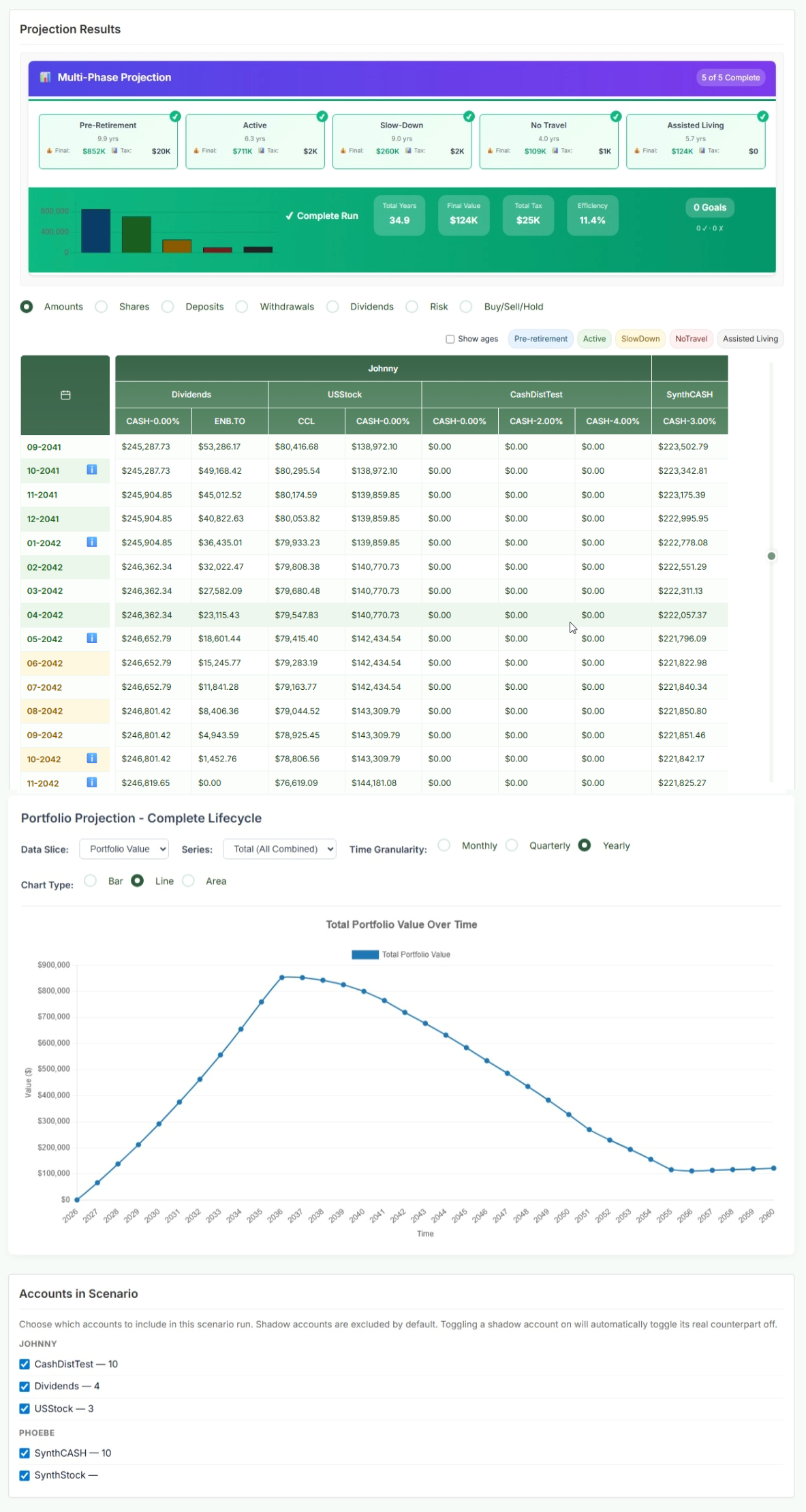
The result is displayed as a multi-phase summary bar and detailed data grid. The data grid shows every account's value month by month, broken out by holding. You can filter by phase using the tabs at the top (Pre-retirement, Active, Slow Down, etc.).
Comparing scenarios
Path: Compare (top navigation)
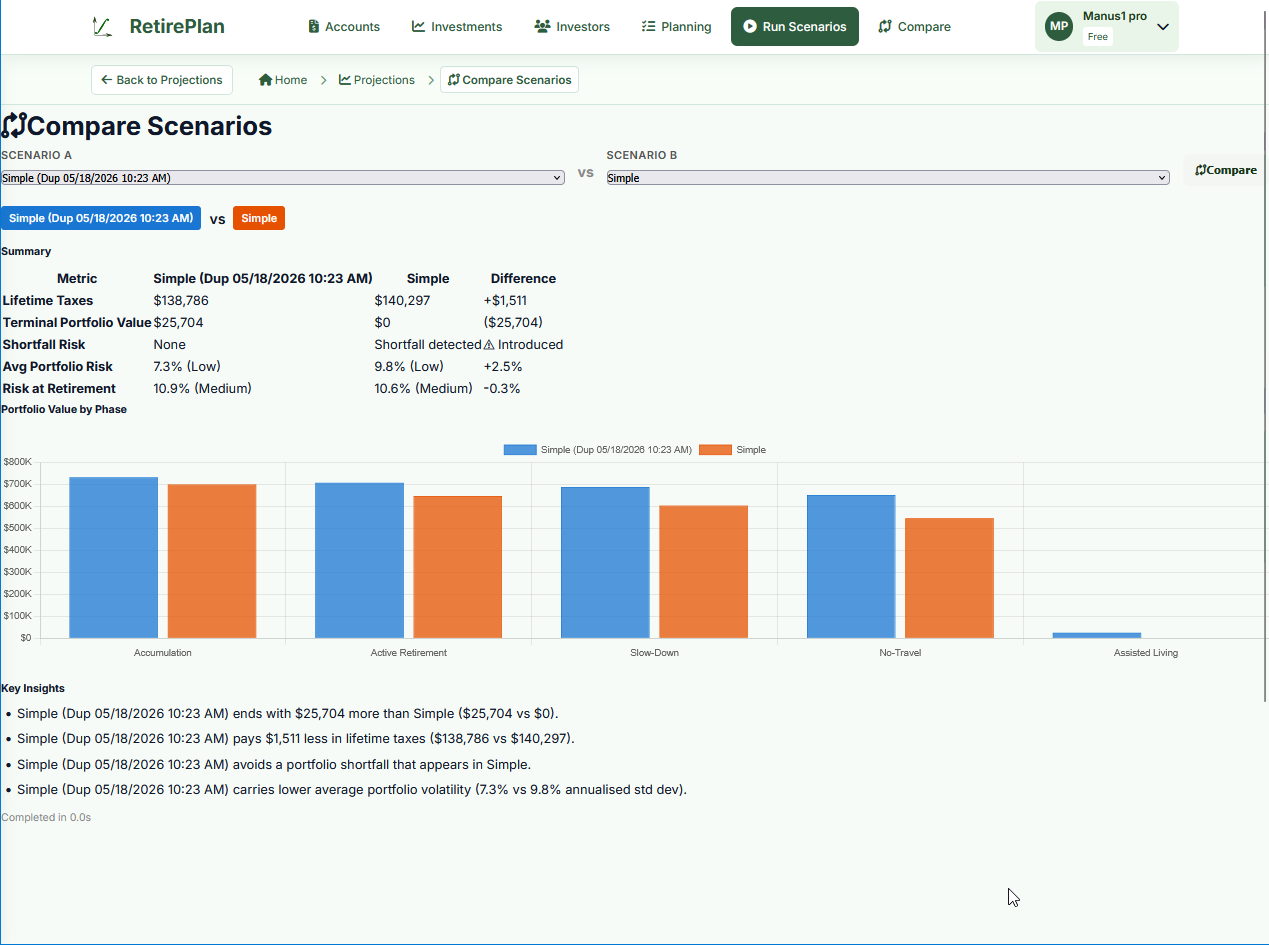
Select any two scenarios from the dropdowns and click Compare. The comparison view shows:
- Summary table: Lifetime taxes, terminal portfolio value, shortfall risk, average portfolio risk, risk at retirement
- Phase bar chart: Portfolio value at the end of each phase for both scenarios
- Key Insights: Auto-generated bullet points highlighting the most significant differences

Insights & Optimization
The Insights panel (accessible from the scenario toolbar) runs dozens of variants of your scenario automatically, testing different combinations of:
- CPP/OAS start ages
- Withdrawal strategies
- 4% Rule on/off and enforcement modes
- Liquidity reserve amounts
- Retirement start ages
It identifies the combination that produces the best outcome (typically: lowest lifetime taxes, no shortfall, and a healthy terminal portfolio value) and recommends it to you.
You can Apply the optimized settings to your scenario with one click, or review each variant individually.